
Sailpoint IdentityIQ – Configure Email Task Alerts
Sailpoint IdentityIQ allows you to configure alerts for any of your existent task. Follow describe the steps required to perform a basic configuration.
- Go to to the Setup > Task menu in your IdentityIQ deployments.

2. Select any of the existing task in your system. For this post we will show the Aggregate Active Directory Accounts task. Right click and select Edit option.
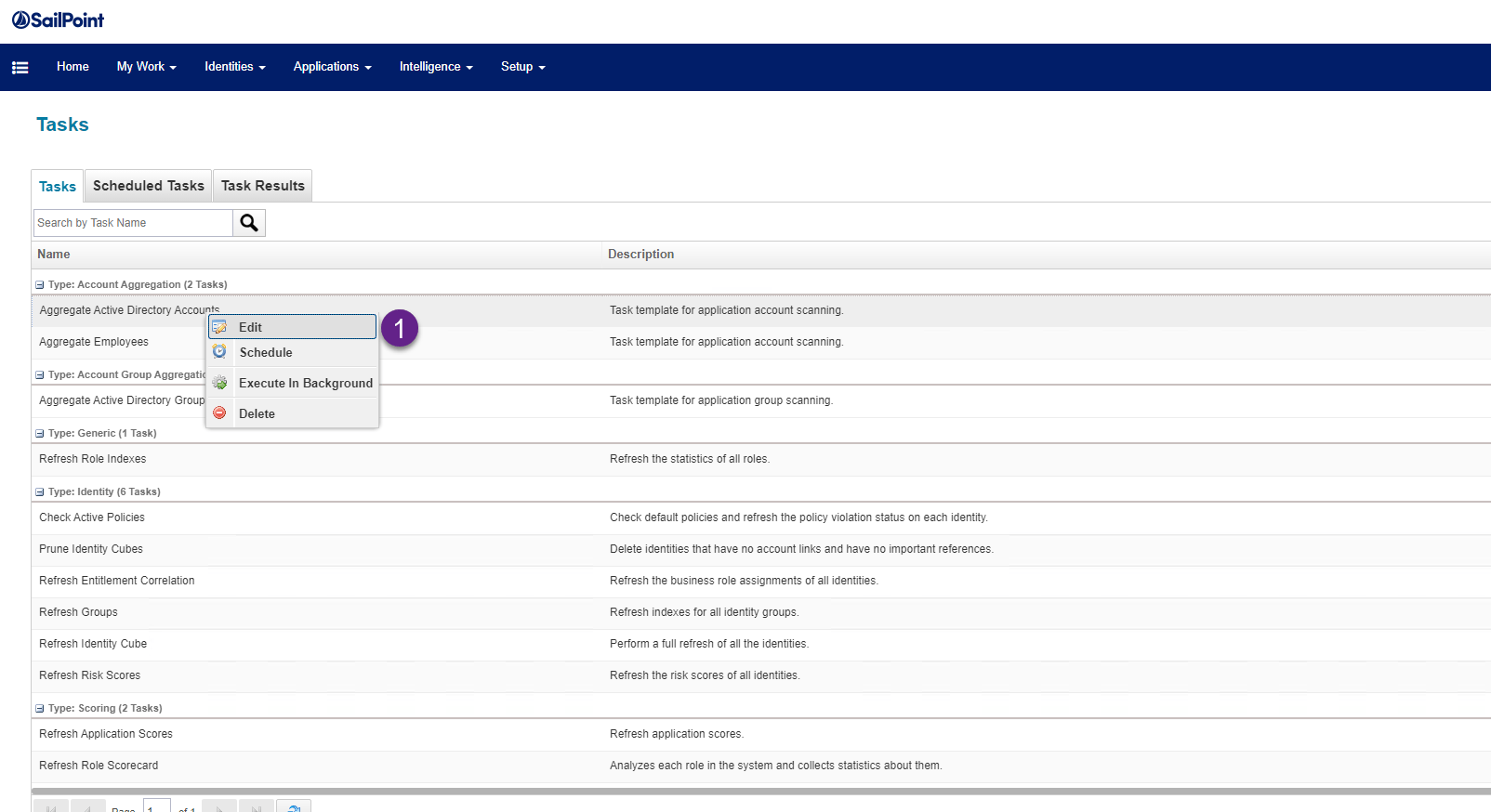
3. From the Edit task screen, go to the Email Task Alerts and in the Email Notifications select Always from the drop-down.

4. Now select the Email Recipients from the list. This is the person who will receive the email alert.

5. Now IdentityIQ is ready to send email notification every time the task is executed. Scroll down and click the Save and Execute button.

6. Once the IdentityIQ task is completed, the recipient will start getting an email with the alert.
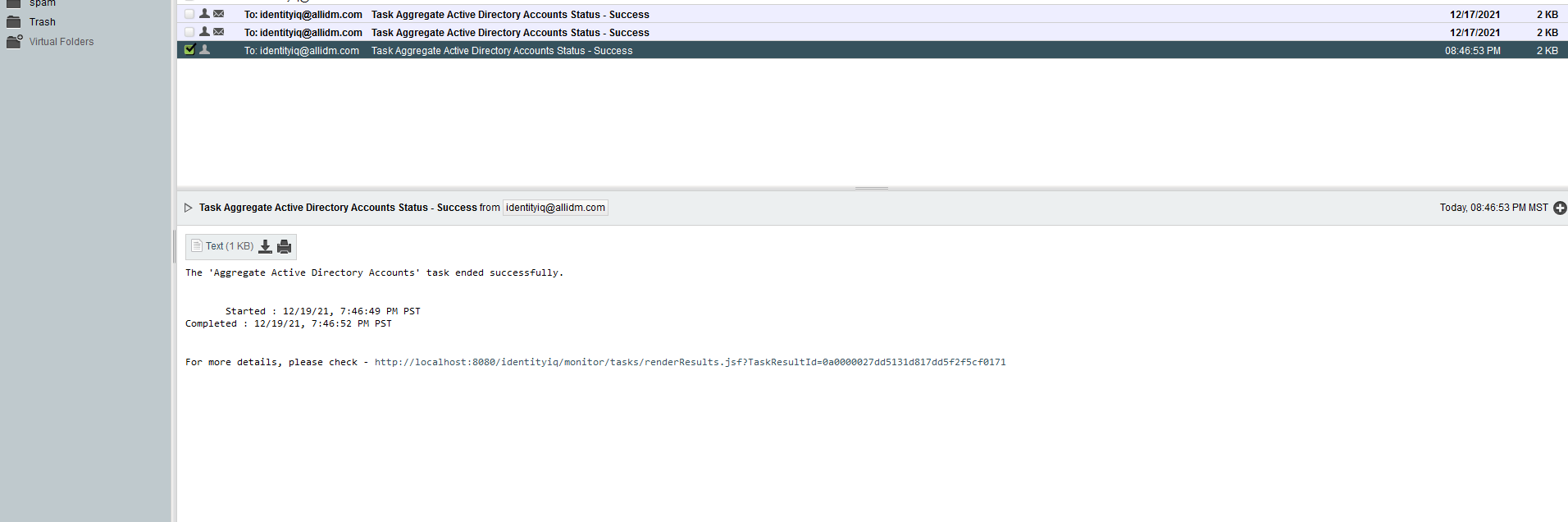
Visit Sailpoint IdentityIQ to learn more about the product.
Keep visiting us for more quick reviews about IdentityIQ.
Gabriel Magarino

Gabriel Magarino – Senior Security Manager | IAM Evangelist - Experienced leader with over 20 years in the IT and cybersecurity industry, specializing in Identity & Access Management. Expert in Okta, One Identity, SailPoint (IdentityIQ & IdentityNow), OneLogin, Delinea, and CyberArk. Passionate about exploring IAM and emerging technologies, coaching, and training IAM teams. Holds a Master’s in Computer Science and multiple certifications, including Okta Professional & Administration, One Identity Architect & Instructor, SailPoint Identity Now, ITIL, Scrum Master, among others. Currently pursuing a PhD with a focus on Computer Science and Artificial Intelligence.